You may be surprised to learn that you have control over certain aspects of your vehicle, even when you are not behind the wheel.
Thanks to MyKey, an assistance feature available on select models, you can limit certain functions to help you (or your teenage driver) to practice good driving habits.
HERE ARE A FEW THINGS FOR YOU TO KNOW
MyKey has three standard settings.
- First, it has a constant chime alert for unbuckled driver and front-passenger seatbelts, and automatically mutes the radio until seatbelts are fastened.
- It also gives you an earlier low-fuel warning to help eliminate another driving concern.
- And, if your car is equipped with available features like BLIS (blind spot information system), Forward Collision Warning with Cross- Traffic Alert and Lane Departure Warning – with MyKey they are automatically locked on.
HOW TO PROGRAM YOUR MYKEY
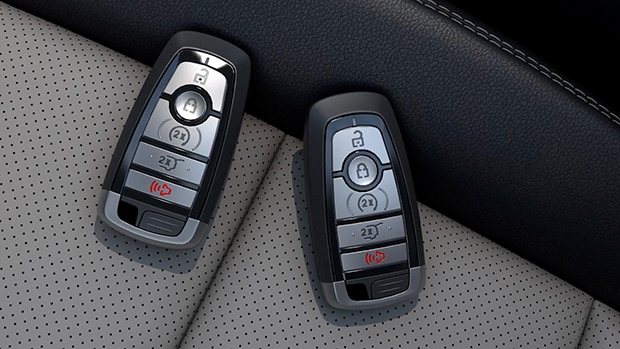
First decide which of your two keys will become your MyKey. The other will be an administrator key, which gives the car full function, and can be used to reset or reprogram MyKey at any time.
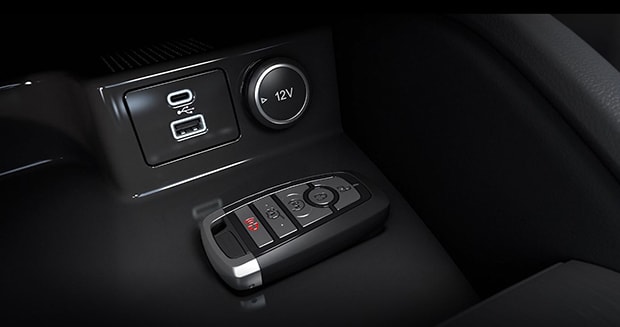
Once you choose your MyKey, simply put it in the ignition and start your vehicle. If your vehicle is a push-button start, just place your key on the backup slot. The location of the backup slot may vary by model.
Using the touchscreen in your vehicle, choose
- Settings
- Vehicle
- MyKey
- Create MyKey
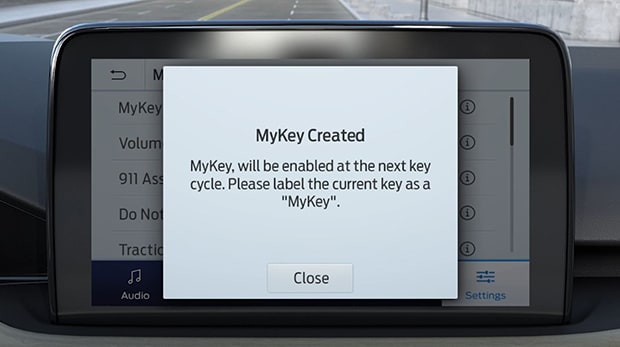
Then follow the instructions. Once you’ve created MyKey successfully, you’ll get a popup message. Press close, then just turn off your vehicle and remove the key. Now whenever this key is used, the settings are on.
ADDITIONAL SETTINGS
- To get the most from MyKey, you can add optional settings that may be especially helpful to parents of new drivers. To access them, once again select Settings > Vehicle > MyKey
- Volume Limiter allows you to limit maximum volume. It can be limited to 44% of total volume.
- You can set 911 Assist and Do Not Disturb to Always On, which forces them to remain on and active.
- A speed-minder chime can also be programmed so that when the MyKey driver exceeds your preselected speed, the speed will be shown in the display followed by an audible tone.
- Max speed allows you to set maximum speed limit. Speed can be limited to 65, 70, 75 or 80 mph. The vehicle will display a visible and audible warning when the selected top speed is reached.
- Screened radio content lets you block all stations labeled as “explicit” by Sirius Satellite Radio.
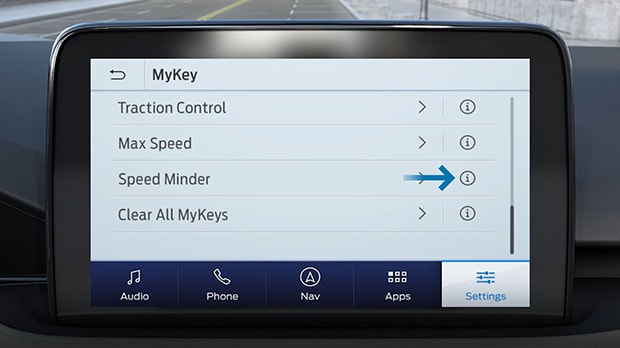
Just select the “i” info buttons next to each option to learn more about them. Of course, you can always choose to turn off MyKey by using your administrator key. To do so, select MyKey Information on your touchscreen and follow the prompts.
VEHICLE AVAILABILITY
2021 – Escape, Mustang Mach-E, Bronco Sport, Bronco, Explorer, F-150
2022 – Escape, Mustang Mach-E, Bronco Sport, Bronco, Explorer, F-150
Have additional questions? Contact Sioux Falls Ford to speak with any of our Sales Consultants or online resources can be found at Ford.com >>